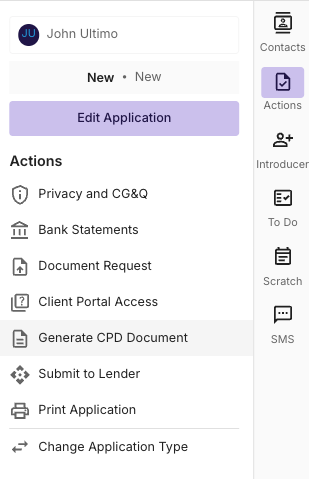
To send your client the CPD Document, navigate to the “Actions” tab on the right hand side of the deal & select “Generate CPD Document“
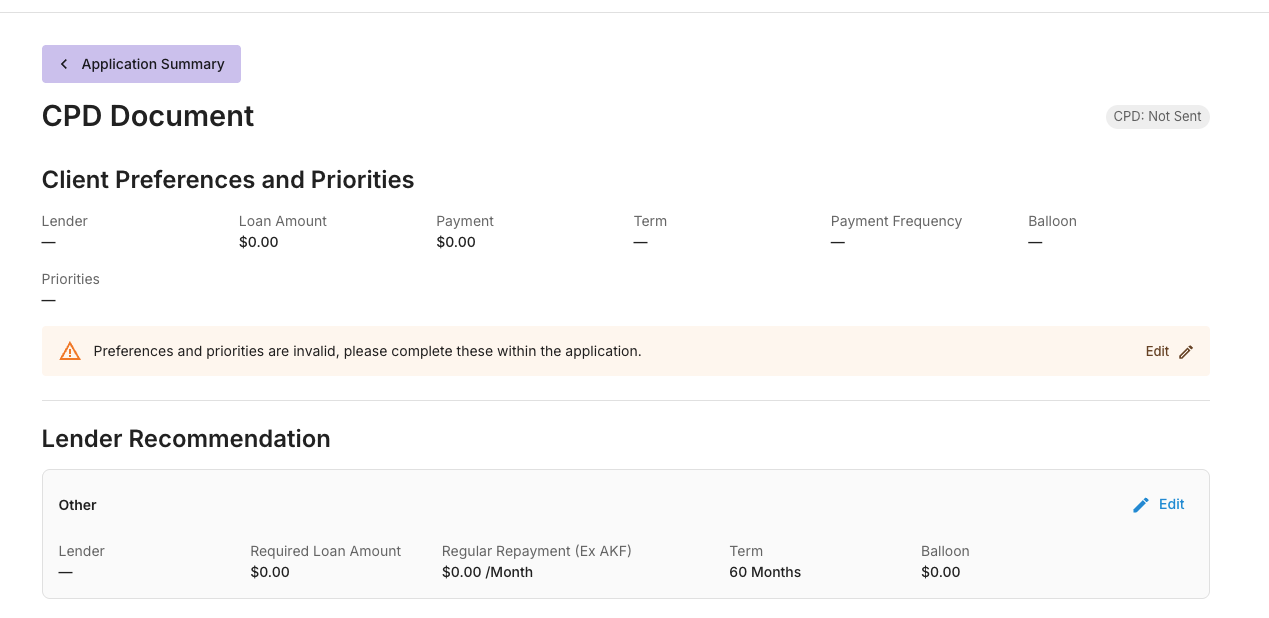
Client Preferences and Priorities & Lender Recommendation
Client preferences and Priorities should be captured prior to CPD generation. If this information is not yet recorded in the application you will see a caution (pictured below).
By Selecting Edit in this caution, it will direct you to the appropriate page to record this information.
Lender Recommendation information is populated from the Loan Details tab in the deal. Any changes made to the loan details directly impact the Lender Recommendation.
You can also update the Loan Details by selecting Edit in the Lender Recommendations section.
This information is vital to the creation of a CPD Document and is a mandatory requirement for document generation.
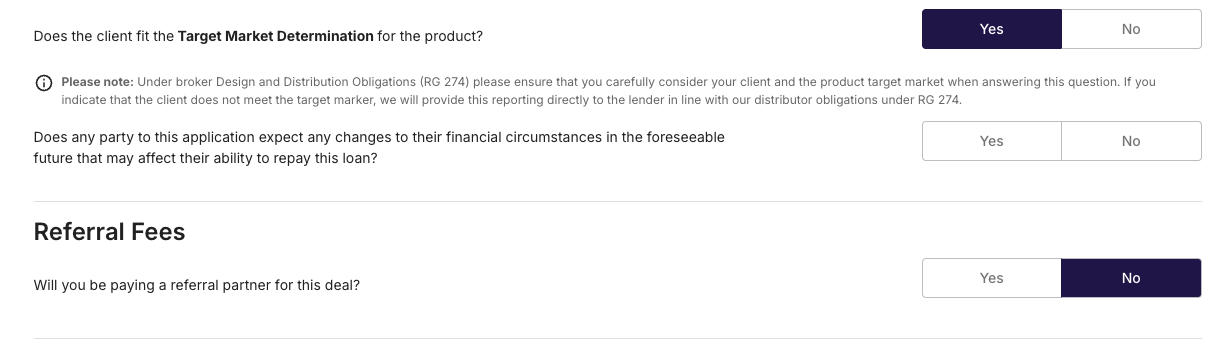
Target Market Determination
If the Client meets the selected lenders Target Market Determination Criteria - Select Yes and proceed to the next step
If the Client does not meet the selected lenders Target Market Determination Criteria - Select No and provide an explanation in the text box that will be created. 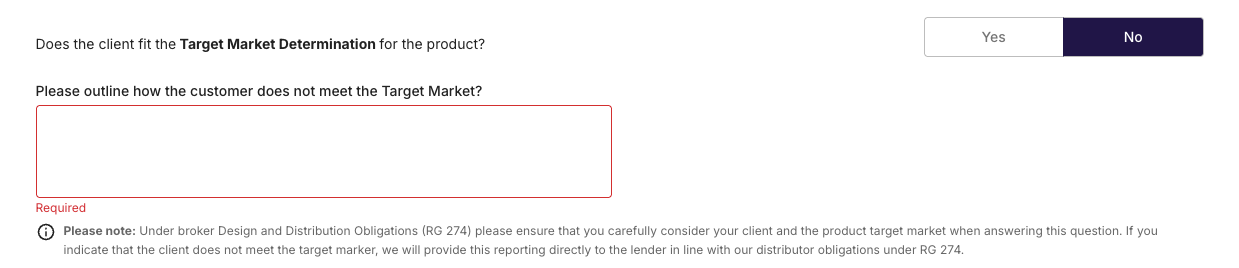
Changes in circumstances
As a part of our responsible lending obligations we must capture if there are any expected changes in the clients financial circumstances in the foreseeable future that would impact their ability to repay the loan.
If No, Select No and proceed to the next step

If Yes, provide an explanation in the text box that will appear.

Referral Fees
If there is an introducer for this deal, you must record that on your CPD Document, as disclosed on your Credit Guide. You will record this by selecting Yes and completing the required fields
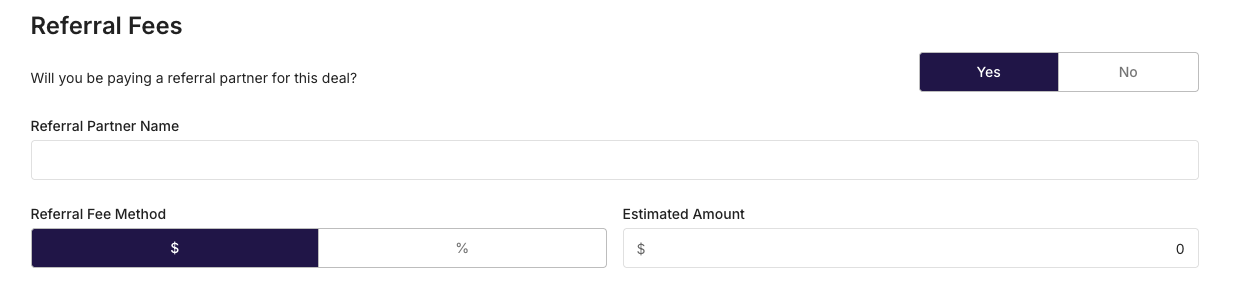
If there is not an introducer for this deal, Select No and proceed to the next step.

Saving , Previewing and Sending the CPD Document
Once you have completed the required steps above, you should save the data you have entered by selecting the Save Changes button.
The Preview option can be used to view the document prior to sending. Once selected, the system will download the document for you to view.
By selecting Send CPD, the document will be sent directly to the applicant(s) via email and a copy of the document will be saved in the Documents tab in the deal.
