To initiate a Document request, navigate to the “Actions” tab on the right hand side of the deal.
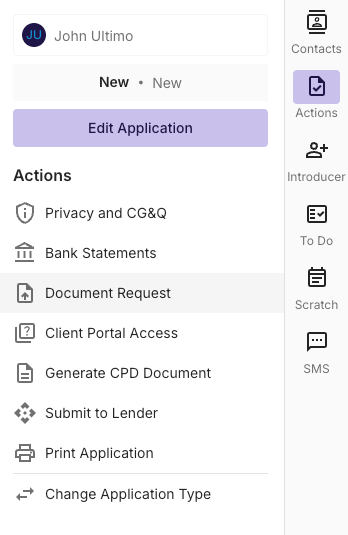
Requesting the required documents
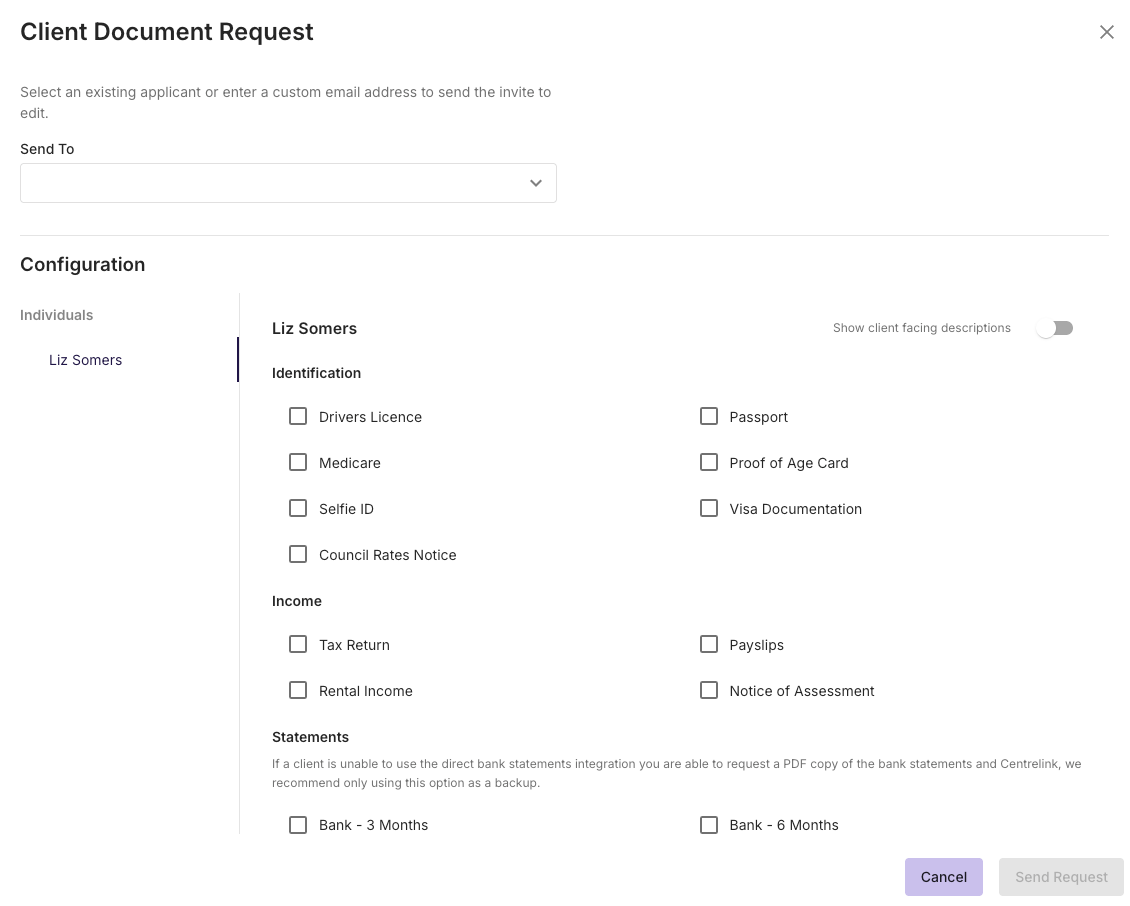
Using the Send To drop down, you’ll be able to select individuals you’d like to collect documents from. Any individuals captured in the application can be selected for document collection.
Request the specific documents by actioning the checkbox next to the corresponding documents.
You can send the request via Email or SMS.
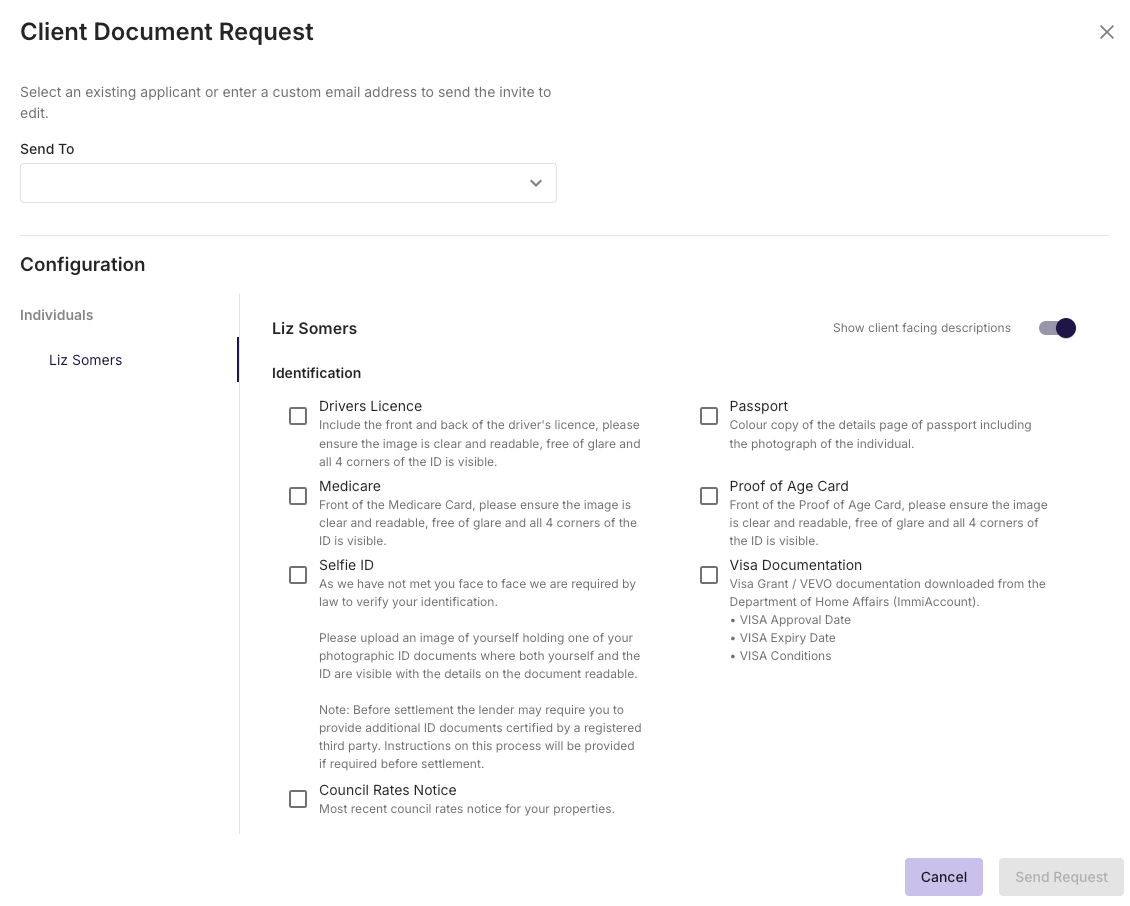
To see a full description of the document that you have requested as viewable by the client, you can toggle on “show client facing descriptions”
For Business applications, you can select the required entity documents by selecting entity on the left hand side of the request drawer
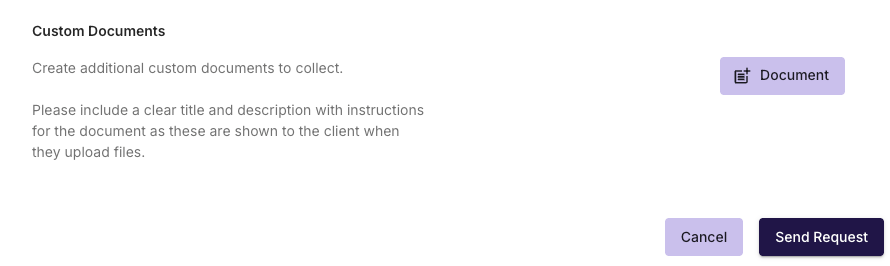
Custom Document Requests
You can create custom document requests, if the required document is not selectable in the above options.
Document Storage
When the Document request has been completed by the recipient, a copy of the Documents will be saved to the Documents tab inside the application,
Note; You’ll also receive an email notification when the client has completed the request.
NCCP Supporting Document Checklist
For guidance on what documents may be required for your consumer applications, you can reference the NCCP Supporting Document Checklist