A client portal enables your customers to complete an online application and upload the relevant supporting documents for their application. The portal is designed for customers to self-serve, and for brokers to provide customers with choice. A client portal can also be used more than once, so if your client would like to submit another application with you, they can do so within the same platform.
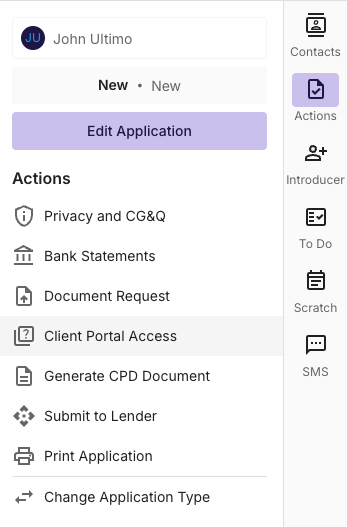
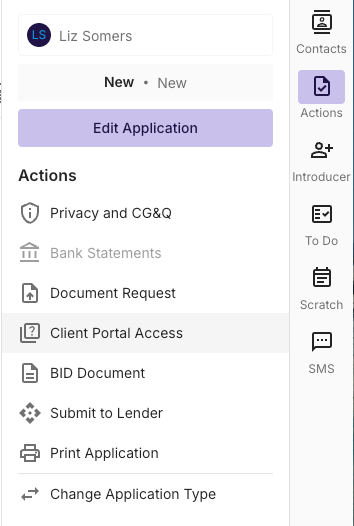
To send a Client Portal request, navigate to the “Actions” tab on the right hand side of the deal.
Sending the Request
Once you’ve clicked on the Client Portal Access button, you’ll be able to choose one or more people to receive the request. This can be sent to Applicants, Non-Borrowing Spouses, or any individual that is captured in the application.
Once sent, your customer receives a link to the Client Portal via email, where the client will set a password and two-factor authentication.
For security reasons, the client will receive the two factor authentication method via email, not a text message.
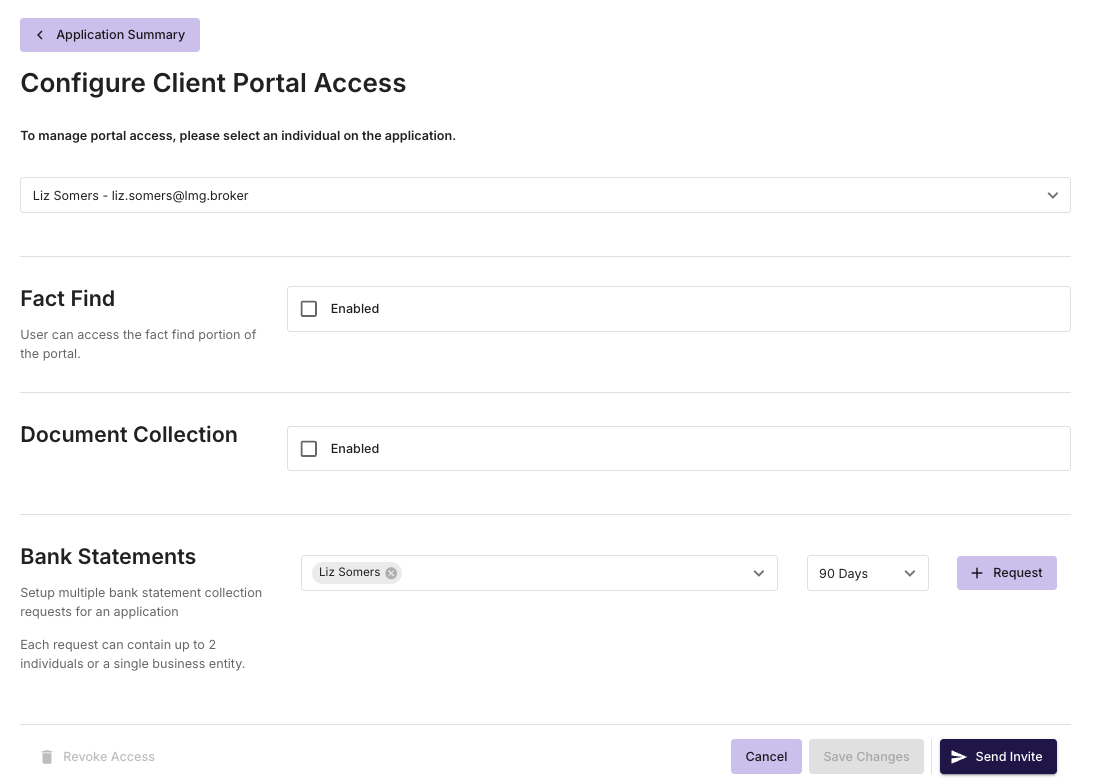
You can select any combination of requests including; Fact Find, Document Collection & Bank Statements by selecting the corresponding “enabled” checkboxes &/or bank statement period.
Fact Find
By selecting Fact Find, this will give the client the opportunity to provide you personal or business details by filling out an application form, at their own pace and in their own time.
The data provided by the client will update your CRM in real-time. Once the client submits the request, it will lock the application for the customer, to avoid late data entry. The application can be unlocked by the broker for the customer to re-fill or complete, if required.
Note; You’ll also receive an email notification when the client has completed the request.
Document Collection
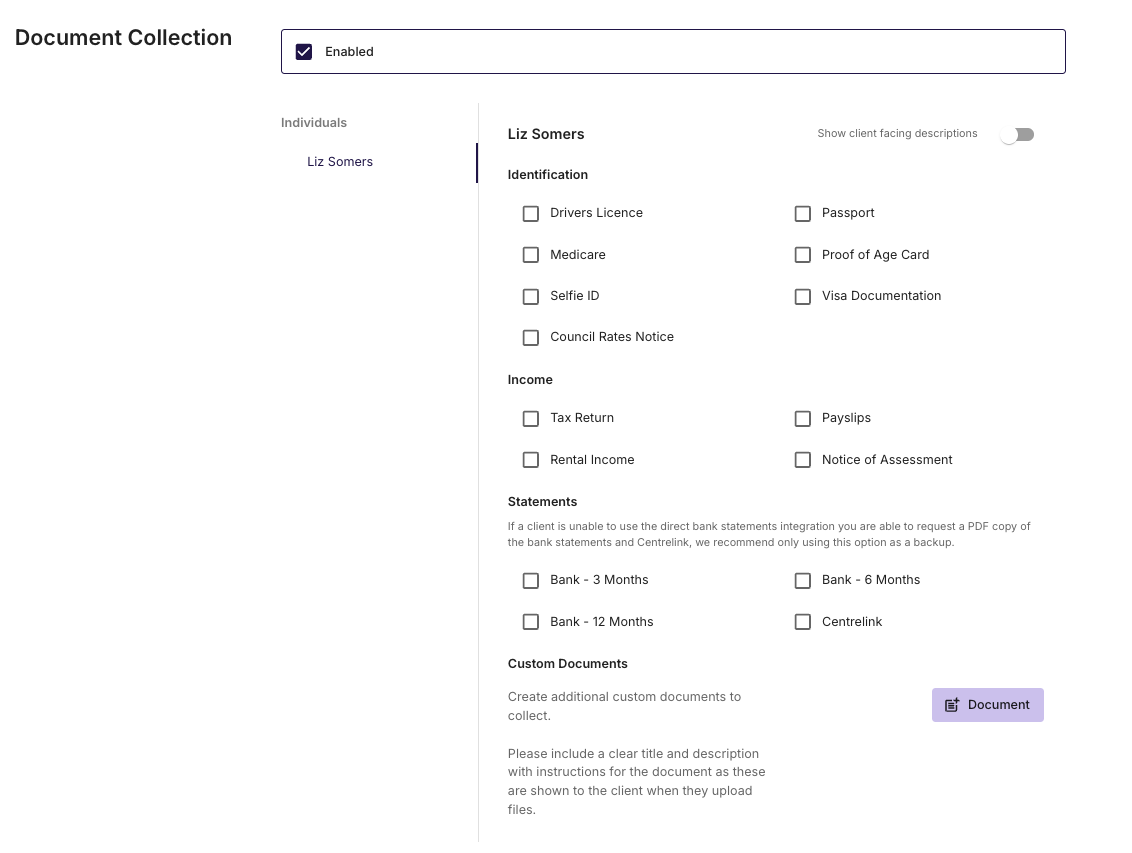
To seamlessly collect documents via the client portal, request the specific documents by actioning the checkbox next to the corresponding documents.
To see a full description of the request as viewable by the client, you can toggle on “show client facing descriptions”
For Business applications, you can select the required entity documents by selecting entity on the left hand side of the request drawer.
Revoking Client Access
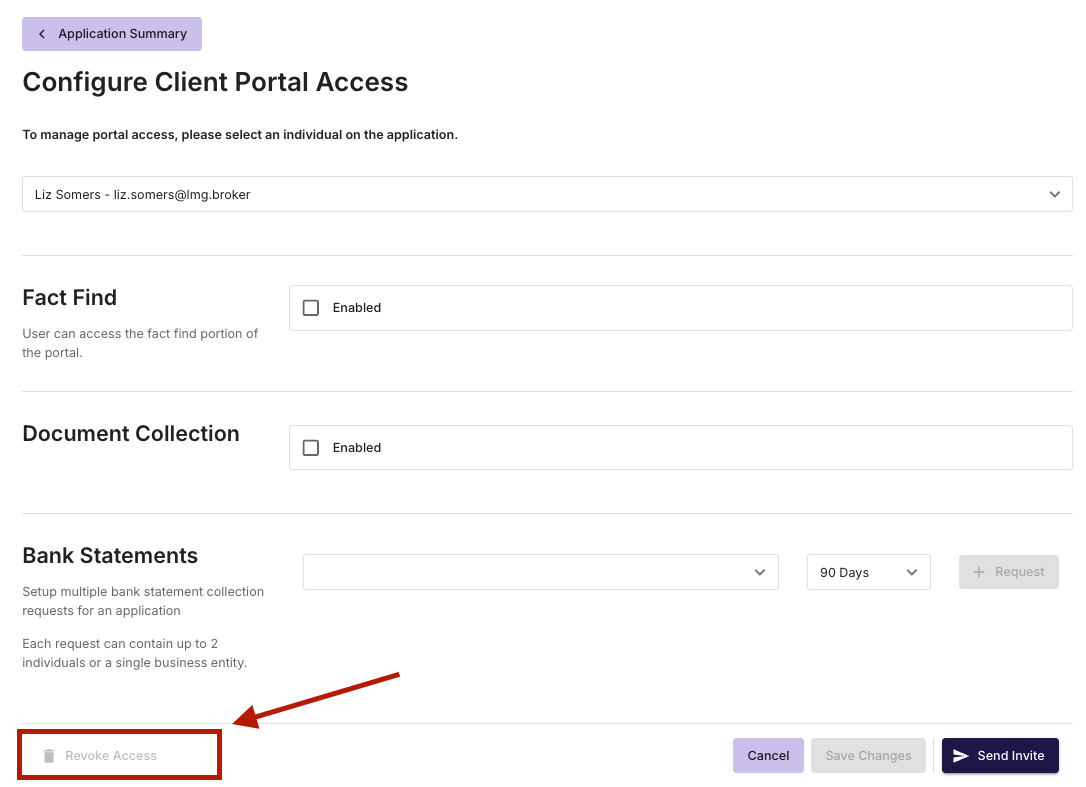
In some cases, you may need to revoke client access to their client portal, you can do so by clicking Actions, then on the Client Portal button, then revoke.